How to Enroll in Windows 10 Extended Security Updates
 James Mitchell
In short
Go to Settings > Update & Security > Windows Update and select Enroll now. Sync your PC settings, redeem 1,000 Rewards points or pay $30 for updates to October 12, 2027.
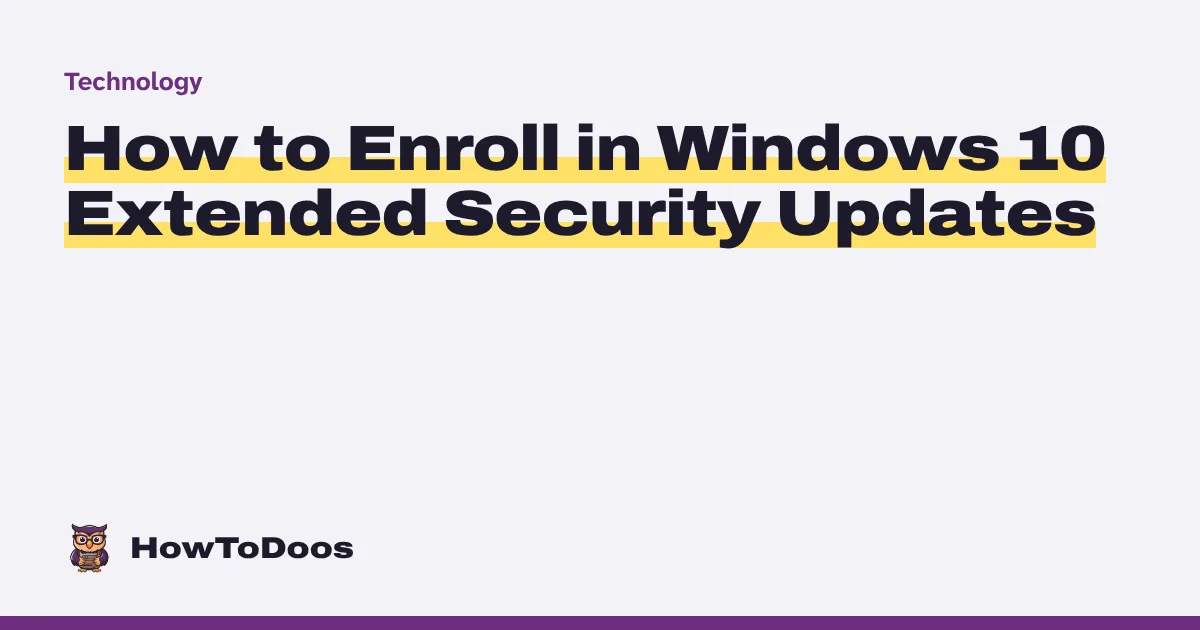
6 steps in this guide
To keep getting security updates on a Windows 10 PC, open Settings > Update & Security > Windows Update and select Enroll now, then choose one of the three enrollment options. Microsoft has extended the consumer Extended Security Updates (ESU) program to October 12, 2027, so the old October 2026 date no longer applies. You can still enroll now, and if you’re already enrolled, you don’t need to do anything.
This guide is for home PCs. Support for Windows 10 ended on October 14, 2025, so a PC outside the program no longer receives security fixes.
What you need
Microsoft’s ESU page lists these requirements:
- Windows 10, version 22H2, in the Home, Professional, Pro Education or Workstations edition
- The latest Windows updates installed, including the ESU Licensing Preparation Package, KB5126256
- A Microsoft account that is an administrator on the PC and isn’t a child account. If you need one, see how to open a Microsoft account
- One way to enroll: synced PC settings, 1,000 Microsoft Rewards points, or a one-time $30 USD payment (or local equivalent) plus tax
Some PCs can’t use the consumer program. Microsoft excludes devices in kiosk mode, and devices joined to an Active Directory domain or Microsoft Entra, or enrolled in Mobile Device Management. A device that is only Microsoft Entra registered can still enroll. If your PC belongs to an employer or school, ask its IT team.
Steps
Step 1: Check your Windows 10 version
Open Settings > System > About and scroll to Windows specifications. Check that the version says 22H2 and that the edition is one of those listed above. If it shows an older version, install updates first, because enrollment needs 22H2.
Step 2: Install the latest updates
Go to Settings > Update & Security > Windows Update and select Check for updates. Install everything offered, then restart if Windows asks. Microsoft says the link to enroll only appears once your device meets the prerequisites, so this step often decides whether you see it at all.
Step 3: Select Enroll now
Return to Settings > Update & Security > Windows Update. When your PC qualifies, you’ll see a link to enroll in ESU. Select Enroll now.
If you use a local account, Windows prompts you to sign in with a Microsoft account. The ESU license is tied to that account, so use one you plan to keep.
Step 4: Choose how to enroll
If you already back up your PC settings, Windows simply prompts you to enroll the device. If you don’t, you choose between these options:
- Sync your PC settings: no extra cost. You start backing up your Windows settings to your Microsoft account.
- Redeem 1,000 Microsoft Rewards points: no cash needed, but Microsoft says Rewards orders are final and can’t be returned or exchanged.
- Pay once: $30 USD or the local equivalent, plus tax. Refunds follow Microsoft’s digital purchase policy for your country.
All three give you the same updates through October 12, 2027. Follow the on-screen prompts to finish.
Step 5: Confirm you’re enrolled
Go back to Settings > Update & Security > Windows Update. Microsoft says this is where you check your enrollment status at any time. If you paid, the purchase also appears in your Microsoft account Order History.
Step 6: Add your other PCs
One ESU license covers up to 10 devices. On the next PC, sign in with the same Microsoft account, open Windows Update and select Add device. Each PC still has to meet the requirements above.
Tips
- Keep automatic updates on. ESU only helps if the updates install, so leave Windows Update running as usual.
- Know what ESU covers. Microsoft limits it to critical and important security updates. It doesn’t include new features, other fixes or technical support.
- Shared PCs need only one enrollment. Once any user on a PC enrolls, the other users on that PC are protected too.
- Treat ESU as breathing room. The program has a fixed end date, so use the time to plan a move to Windows 11 or a new PC.
Troubleshooting
The Enroll now link is missing. Install all pending updates and restart, then confirm you’re signed in as an administrator with a Microsoft account. Pureinfotech’s walkthrough suggests turning on Get the latest updates as soon as they’re available in Windows Update, checking again, and restarting. Also confirm that KB5126256 is installed.
Windows says enrollment is unavailable in your region, or “Something went wrong”. Microsoft fixed a bug behind these messages with an out-of-band update, KB5071959, in November 2025. Check for updates, install what’s offered and try again.
Enrollment still fails. Avoid registry edits and tools from unofficial sites. Pureinfotech warns that the manual method can further damage your Windows installation. Use Microsoft Support or the Microsoft Q&A community instead.
Should you upgrade instead?
If your PC can run Windows 11, upgrading gets you out of the ESU countdown. Microsoft’s Windows 11 minimum specs include a compatible 64-bit processor with two or more cores at 1 GHz or faster, 4 GB of RAM, 64 GB of storage, UEFI with Secure Boot capability, and TPM 2.0.
Microsoft recommends using the PC Health Check app to test your PC, then waiting until Windows Update says the upgrade is ready. If your PC doesn’t qualify, Microsoft recommends leaving it on Windows 10, which makes ESU the practical option for now.
FAQ
When does Windows 10 ESU end?
The consumer program ends on October 12, 2027. Microsoft moved it from the original October 2026 date in June 2026, as BleepingComputer reported.
Do I need to re-enroll if I joined before the extension?
No. Microsoft says coverage for enrolled devices continues automatically through October 12, 2027, with no action needed.
Is it too late to enroll?
No. Microsoft says you can enroll at any time until the program ends on October 12, 2027.
Is ESU free?
It can be. There’s no extra cost if you sync your PC settings, or you can redeem 1,000 Rewards points instead of paying $30. Microsoft notes that options and timing may vary by region, such as in the European Economic Area, so check the official page for your country.
Does ESU work with a local account?
You must sign in to a Microsoft account to enroll, and that account must be an administrator on the PC. If you normally use a local account, Windows prompts you to sign in during enrollment.
Conclusion
To enroll, update Windows, select Enroll now, pick an option and confirm your status in Windows Update. That keeps your Windows 10 PC receiving security updates until October 12, 2027, which gives you time to upgrade on your own schedule.