How to Check Your Clocks After Daylight Saving Time Ends
 James Mitchell
In short
Phones and computers fall back on their own if automatic time is on. Check that setting, then reset car, oven, microwave and wall clocks by hand.
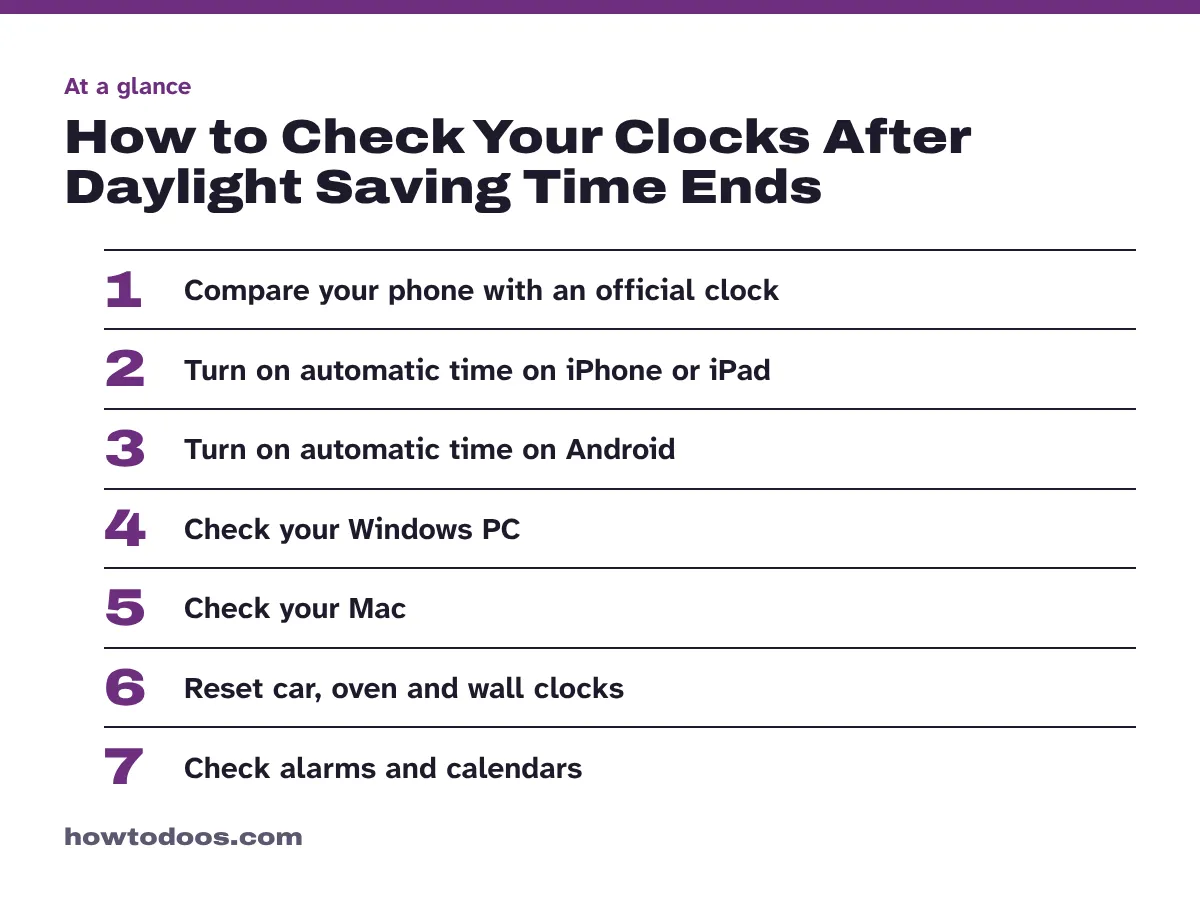
7 steps in this guide
Daylight saving time ended at 2 a.m. local time on Sunday, 1 November 2026, when clocks fell back one hour to 1 a.m., according to FOX 5 DC. Connected devices usually change on their own, but only if automatic time is switched on. Anything without an internet connection — your car, oven, microwave and wall clocks — needs a manual reset.
This guide shows you how to confirm your phone and computer updated correctly, fix them if they didn’t, and work through the clocks you have to change by hand.
What you need
- Your phone, tablet and computer, connected to Wi-Fi or mobile data
- The passcode for any device with Screen Time or work restrictions
- 10–15 minutes to walk around the house and car
- The manual (or the model number) for any appliance you’ve never reset before
Who changes their clocks
The fall-back change follows the U.S. Uniform Time Act schedule: daylight saving time starts on the second Sunday in March and ends on the first Sunday in November. Hawaii and most of Arizona stay on standard time all year, as do Puerto Rico, the U.S. Virgin Islands, Guam, American Samoa and the Northern Mariana Islands. Most of Canada changes on the same night; Saskatchewan does not.
If you live somewhere that doesn’t observe daylight saving time, your clocks should not have changed — skip to Step 1 to make sure nothing moved by mistake.
Steps
Step 1: Compare your phone with an official time source
Open your phone’s lock screen and compare it with the official time at time.gov (U.S.) or the National Research Council Canada clock. If they match to the minute, your phone has already fallen back and you can move to Step 4. If your phone is an hour ahead, or shows the wrong time zone, continue with the next step for your device.
Step 2: Turn on automatic time on your iPhone or iPad
Apple’s support article “If you can’t change the time or time zone on your Apple device” lists the settings to check:
- Make sure the device is online and running the latest iOS or iPadOS update.
- Go to Settings > General > Date & Time and turn on Set Automatically.
- To let your location set the time zone, go to Settings > Privacy & Security > Location Services > System Services and turn on Setting Time Zone.
If Set Automatically is greyed out, a Screen Time passcode or a work or school profile is blocking it. Ask whoever manages that restriction, or set the time manually by turning Set Automatically off and choosing the correct time zone.
Step 3: Turn on automatic time on Android
Menu names vary slightly between Pixel, Samsung Galaxy and other phones, but the setting lives in the same place on most devices, as SlashGear explains:
- Open Settings (or swipe down and tap the gear icon).
- Search for or open Date & time — on Pixel it’s under System, on Samsung under General management.
- Turn on Set time automatically and Set time zone automatically.
- Turn on Use location to set time zone if you travel between time zones.
Still an hour out? Restart the phone. If the problem continues, your carrier’s network may be sending the wrong time zone — contact them and ask whether it’s a known issue.
Step 4: Check your Windows PC
According to NinjaOne’s Windows 11 guide:
- Open Settings > Time & language > Date & time.
- Turn on Set time automatically.
- Turn on Set time zone automatically, or pick your time zone from the list.
If the toggles are greyed out, your organisation manages the setting through Group Policy or device management — contact your IT team rather than changing the registry. On a home PC that still shows the wrong time, make sure the Windows Time service is running, then restart.
Step 5: Check your Mac
Apple’s support article recommends these steps:
- Open System Settings > Privacy & Security > Location Services, make sure it’s on, then click Details next to System Services and allow time zone setting.
- Open System Settings > General > Date & Time and turn on both automatic date and time and automatic time zone.
- Restart your Mac.
Step 6: Reset the clocks that can’t update themselves
Work through the house room by room so you don’t miss one:
- Car dashboard: most cars use the infotainment screen (look for Settings > Clock or Time); older cars use buttons marked H and M. Check your owner’s manual for the exact steps.
- Oven, microwave and coffee maker: usually a Clock button, then the number pad or arrows, then Clock or Start again to confirm.
- Wall clocks and watches: move the hands back one hour.
- Bedside alarm clocks: reset the time, then confirm tomorrow’s alarm still shows the right hour.
- Thermostats, sprinkler timers and security systems: non-connected models keep their schedules on the old time, so the heat or watering may come on an hour early until you fix them.
Step 7: Check alarms, calendars and schedules
Open your phone’s alarm app and make sure tomorrow’s alarm is set for the time you expect. In your calendar, look at Monday’s first meeting — especially any shared with people in places that don’t change their clocks, such as Arizona, Hawaii or Saskatchewan, because the gap between you just changed by an hour.
Tips
- Do the manual clocks before bed the night of the change so you wake up to the right time everywhere.
- Take a photo of the reset steps for your car and oven and save it in an album called “Time change”. Next March you’ll spring forward in two minutes.
- Don’t change the time manually to cheat app timers — Apple specifically advises against it because it can confuse apps and syncing.
- Travelling soon? Keep automatic time zone switched on so your phone updates when you land.
Troubleshooting
| Problem | Likely cause | Fix |
|---|---|---|
| Phone is exactly one hour ahead | Automatic time is off | Turn on automatic date and time (Steps 2–3) |
| Time is right but the time zone is wrong | Location-based time zone is off | Turn on time zone from location, or choose it manually |
| Automatic setting is greyed out | Screen Time, work profile or Group Policy | Ask the person or IT team that manages the device |
| Computer drifts after a restart | Time service not syncing | Restart the Windows Time service, then reboot |
| Smart speaker or TV still wrong | Device hasn’t checked in yet | Restart it or check for a software update |
FAQ
Did daylight saving time end on 1 November 2026?
Yes. In most of the U.S. and Canada, clocks fell back from 2 a.m. to 1 a.m. local time on Sunday, 1 November 2026.
Do iPhones and Android phones change the time by themselves?
Yes, as long as automatic date and time is turned on and the phone has a network connection. If it’s off, the phone keeps the old time until you change it.
Which clocks do I have to change manually?
Anything without an internet connection: car clocks, ovens, microwaves, coffee makers, wall clocks, watches and older thermostats or timers.
Why is my phone still an hour ahead?
Automatic time is probably switched off, or a restriction such as Screen Time or a work profile is blocking it. Turn the setting on, then restart the phone.
When do the clocks change again?
Daylight saving time starts again on the second Sunday in March, when clocks spring forward one hour.
Conclusion
Most of the time change takes care of itself. Spend two minutes confirming automatic time is on for your phone and computer, then ten minutes resetting the car, kitchen and wall clocks. Check tomorrow’s alarm before bed and you’re done until spring.