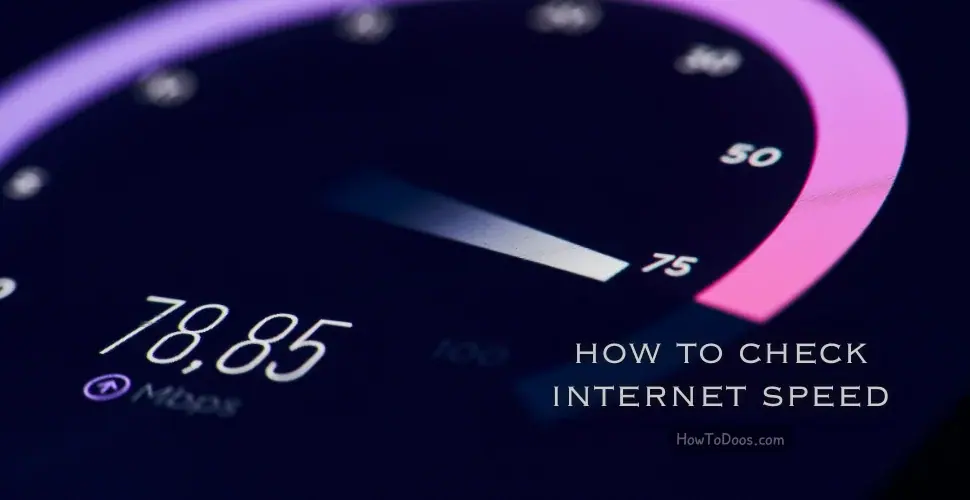
How to Check Internet Speed - Step-by-Step Guide
 Sarah Thompson
In short
Learn simple ways to check your internet speed accurately on different devices and platforms.
4 steps in this guide
Keeping track of your internet speed helps you understand the quality of your connection and whether you’re getting the speed your provider promised. This guide will show you how to check your internet speed on various devices and using different methods.

Why Check Your Internet Speed?
Knowing your internet speed can be useful for:
- Ensuring Quality: Verifying if your internet provider delivers the promised speed.
- Troubleshooting Connectivity Issues: Identifying network slowdowns or connection interruptions.
- Optimizing Streaming and Gaming: Ensuring you have sufficient bandwidth for online activities.
What You Need to Know About Internet Speed
Internet speed generally includes two main aspects:
- Download Speed: Measures how fast data comes to your device.
- Upload Speed: Measures how fast data is sent from your device to the internet.
Most providers emphasize download speeds, but upload speed is equally important for activities like video calls, gaming, and cloud backups.
Tools for Checking Internet Speed
Several free tools and websites are available to check your internet speed. Here are some popular options:
Step 1: Speedtest by Ookla
- Website: speedtest.net
- How to Use:
- Go to speedtest.net on your browser.
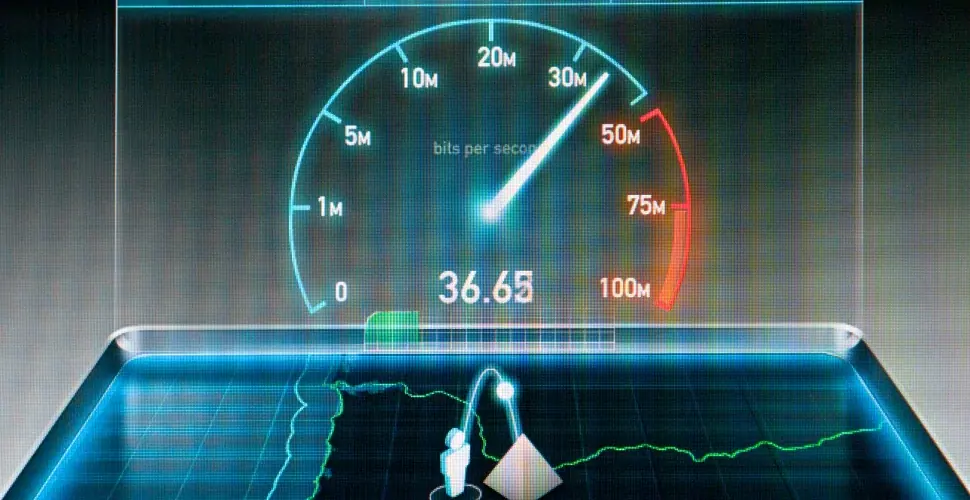
- Click on the Go button to start the speed test.
- Within a few seconds, your download and upload speeds will be displayed.
Step 2: Fast.com by Netflix
- Website: fast.com
- How to Use:
- Visit fast.com on your browser.
- The website will automatically start testing your download speed.
- Click on Show More Info to view upload speed and latency.
Step 3: Google’s Speed Test
- How to Use:
- In the Google search bar, type speed test.
- Google will display a speed test option at the top of the search results.
- Click on Run Speed Test to see your download and upload speeds.
Step 4: Internet Speed Test Apps
- Mobile apps like Ookla’s Speedtest, Meteor by OpenSignal, and V-SPEED are available on both iOS and Android.
- Simply download the app, open it, and follow the instructions to test your speed.
How to Check Internet Speed on Different Devices
On a Desktop Computer
- Open your browser and go to a speed testing website like speedtest.net or fast.com.
- Click Go (on Speedtest) or wait for Fast.com to begin the test automatically.
- Your results will display within seconds.
On a Mobile Device
- Download a speed test app from your device’s app store (Speedtest by Ookla or Meteor by OpenSignal).
- Open the app and tap Start Test.
- The app will show your download and upload speeds.
On a Smart TV or Streaming Device
- Use your TV’s built-in browser to access fast.com or another speed testing website.
- Alternatively, download a speed test app for TV or streaming devices (if available in your device’s app store).
- Follow the on-screen prompts to complete the test.
Understanding Your Results
- Ping (Latency): Measured in milliseconds (ms), this indicates the delay between your device and the server. Lower ping is ideal for online gaming and video calls.
- Download Speed: Typically displayed in Mbps (Megabits per second), this is how quickly you can receive data.
- Upload Speed: Also in Mbps, this shows how fast you can send data. Important for activities like video calls and uploading files.
Tips for Getting Accurate Results
- Disconnect Other Devices: For a more accurate reading, disconnect other devices that may be using bandwidth.
- Test Multiple Times: Network speeds can vary, so it’s best to test multiple times at different times of day.
- Use a Wired Connection: For the most accurate results, use a wired connection rather than Wi-Fi.
Summary
Knowing how to check your internet speed helps you manage your connectivity and address any performance issues with your internet service provider. Try these easy methods and tools on different devices to monitor your speed and make the most out of your internet connection.
Related Articles:
By following these steps, you’ll be able to get a clear picture of your internet speed and ensure your connection is performing optimally.