How to Change Facebook Password – A Step-by-Step Guide
 Emily Carter
In short
Learn how to change your Facebook password with this simple guide to ensure your account's security.
Changing your Facebook password regularly is a simple yet effective way to keep your account secure. Whether you’ve forgotten your password or want to enhance your security, this guide will walk you through the steps.
Why Change Your Facebook Password?
Protecting your online presence is crucial in today’s digital age. Changing your Facebook password can help:
- Prevent unauthorized access to your account.
- Keep your personal information safe.
- Protect your account after a security breach.
How to Change Your Facebook Password on Desktop
Follow these simple steps to change your Facebook password using a desktop browser:
-
Log in to Your Account
- Open Facebook in your browser.
- Enter your username and current password to log in.
-
Access Settings
- Click on your profile picture in the top-right corner.
- Select Settings & Privacy, then click Settings.
-
Navigate to Security and Login
- In the left-hand menu, select Security and Login.
- Find the section labeled Login.
-
Change Your Password
- Click Edit next to Change Password.
- Enter your current password and then type your new password twice to confirm.
- Click Save Changes.
How to Change Your Facebook Password on Mobile
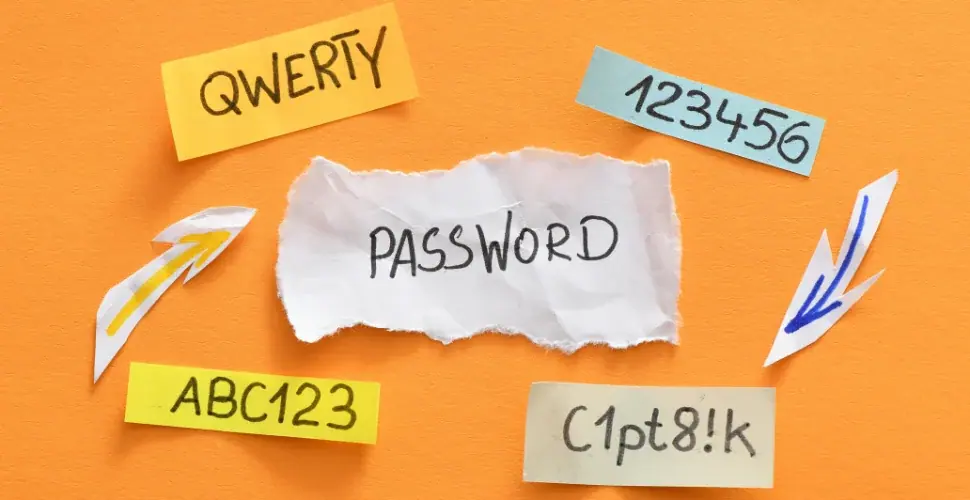
You can also update your password using the Facebook mobile app:
-
Open the Facebook App
- Log in to your account if prompted.
-
Go to Settings
- Tap the menu icon (three horizontal lines) in the bottom-right corner for iOS or top-right for Android.
- Scroll down and tap Settings & Privacy, then select Settings.
-
Find Security and Login
- Under the Account section, tap Password and Security.
-
Update Your Password
- Tap Change Password.
- Enter your current password and your new password twice.
- Tap Save Changes.
Tips for Creating a Strong Password
A strong password is essential for account security. Here are some tips:
- Use a mix of uppercase and lowercase letters.
- Include numbers and special characters.
- Avoid using easily guessable information like birthdays or names.
- Make it at least 12 characters long.
What to Do If You Forget Your Facebook Password
If you can’t remember your current password, follow these steps to reset it:
-
Go to the Login Page
- Click on Forgot Password? below the password field.
-
Identify Your Account
- Enter your email address, phone number, or username associated with the account.
- Follow the prompts to verify your identity.
-
Reset Your Password
- Facebook will send a password reset link to your email or phone.
- Click the link and follow the instructions to create a new password.

Conclusion
Changing your Facebook password regularly is an important habit to ensure your account’s security. By following these steps, you can safeguard your personal information and enjoy a worry-free social media experience.
For more helpful guides, stay tuned!
FAQs
1. How often should I change my Facebook password?
It’s a good practice to change your password every few months or if you suspect any security issues.
2. Can I change my password without knowing the current one?
Yes, but you’ll need to reset your password through the Forgotten Password? option.
3. What should I do if I suspect my account is hacked?
Change your password immediately, review your login activity, and enable two-factor authentication for added security.